GameSearch-AI is most powerful when it has "boots on the ground" data. You can now upload .gpx waypoints and images (.jpg, .png) to provide the AI with the historical and visual context it needs to find better spots.
While satellite imagery and terrain data provide a great foundation, they can't see what you see while walking the timber. A "creek" on a map might be a raging river or a dry ditch; a "field" might be chest-high goldenrod or a freshly mowed clover plot. User attachments bridge this gap.
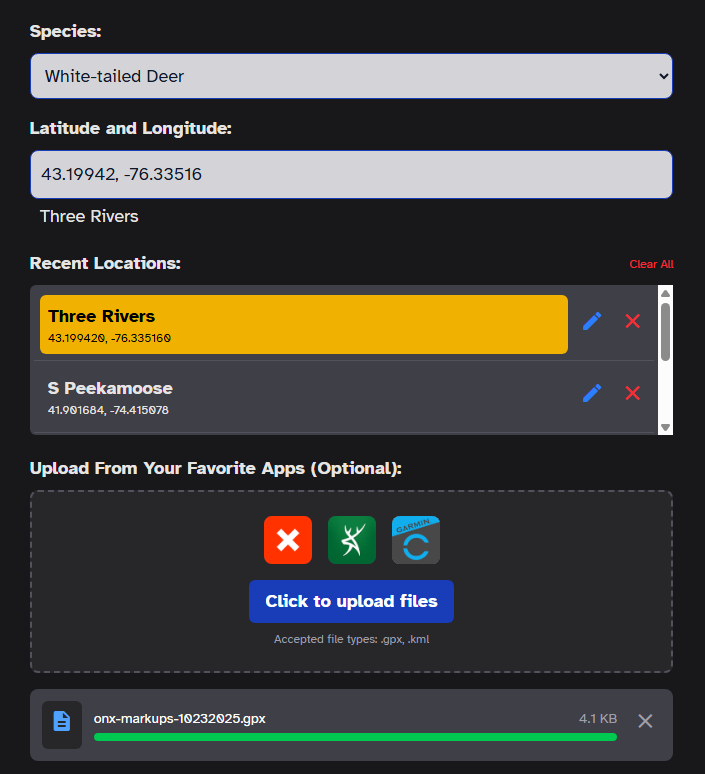
1. Waypoints (.gpx): You can export waypoints from applications like OnX, HuntStand, or Garmin. When you upload a GPX file, GameSearch extracts the coordinates, names, and descriptions of your markers. The AI uses these to understand where you've found bedding, active scrapes, or previous harvest locations.
2. Scouting Photos (.jpg, .png): This is a major update to our engine. You can now upload trail camera photos or pictures of sign (rubs, tracks, scat) taken with your phone.
The AI needs some description to be able to differentiate uploaded images. When you upload a photo, you must provide a description. For example: "A heavy rub on a 4-inch diameter cedar tree found on the edge of the swamp." This text tells the AI exactly what the photo represents.
- DO: Upload waypoints that are within the map area you are analyzing. Points outside the view will be ignored.
- DO: Edit waypoint titles in your mapping app to be descriptive before exporting.
- DO: Use the "Field Observations" box in Step 2 to provide even more context for your images.
- DON'T: Import GPX data containing lines or shapes (tracks, boundaries). Currently, we only support point-based waypoints.
- DON'T: Upload blurry or low-context photos. The more detail you provide in the description, the better the AI can adjust its predictions.
Exporting data from your mapping apps can be a little bit cumbersome, but it's the best way to get a high-fidelity analysis. Here is the recommended workflow for OnX users:
- Move your OnX map to the area you plan to analyze.
- Visit the "My Content" tab.
- Click the "Waypoints" filter.
- Make sure "Filter list as map moves" is toggled ON.
- Tap "Select" to enter bulk select mode.
- Select the relevant waypoints for this specific search.
- Tap "Export" and save the .gpx file to your device.
- Upload that file into Step 1 on GameSearch-AI.
By combining your local knowledge with our AI's broad understanding of terrain, you get a scouting report that is truly customized to your specific piece of dirt.